What Corporate App Development Really Means
Most corporate apps never fail because of an ugly button. They fail months earlier, in a meeting where nobody asked who actually approves a purchase order after 5 p.m. on a Friday.
Corporate app development is the process of building internal or employee-facing software tied to specific business workflows. Think warehouse scanning, expense approvals, or field inspections.
Consumer mobile apps are built to be discovered in an app store and compete for attention.
Corporate apps are built to get a job done, often for a few hundred users who have no choice but to use them.
The terminology gets muddy, so here is how the terms differ in practice:
Corporate app is the umbrella term for software a company builds for its own operations. An enterprise app usually implies larger scale, multiple departments, and heavy legacy system integration with ERPs or CRMs.
An internal app serves employees only.
An employee portal is a single front door to HR, IT, and company resources. A customer-facing business app is built by a company for its clients (booking, account management, ordering) but still ties into internal systems.
Why does this distinction matter? Because each type carries different security, distribution, and integration requirements.
And picking the wrong category early leads to the wrong budget, the wrong architecture, and the wrong team.
The biggest risks in enterprise application development are skipped discovery, weak integrations, and poor adoption planning. Bad UI rarely makes the list.
That’s why a decision framework beats a feature list.
This guide walks through what to build, how the process works, which architecture fits, how to secure devices and data, and what ownership looks like after launch.
Choosing What to Build
Before writing a line of code, you need to know which category your project falls into. The type of app shapes everything downstream, from hosting to device policy to how much testing you need.
Five Types of Corporate Apps
Most internal business applications fall into one of five buckets. Each maps to a different business function and a different set of technical demands.
- Internal operational apps handle day-to-day processes like inventory scanning, stock counts, or quality checks on a production line. They tend to need barcode or camera access and fast, reliable data entry.
- Employee portals centralize HR self-service, leave requests, payslips, onboarding checklists, and company announcements. Their value comes from replacing scattered emails and spreadsheets with one login.
- Customer-facing business apps let clients book appointments, track orders, or manage accounts. A physiotherapy chain with a booking app that syncs to practitioner calendars is a typical example.
- Field and offline mobile apps support technicians, inspectors, and delivery drivers who work in basements, rural areas, or job sites with patchy signal. Field service reporting with photos, signatures, and GPS stamps is the classic use case.
- Internal web apps and dashboards give managers and analysts a browser-based view of operations, such as sales pipelines, approval queues, or logistics KPIs. They usually don’t need hardware access, so a web build is often enough.
Build, Buy, or Automate?
Custom software development is not always the right answer.
Sometimes a $15-per-user SaaS tool plus a few automations beats a six-figure build. Use these criteria to decide.
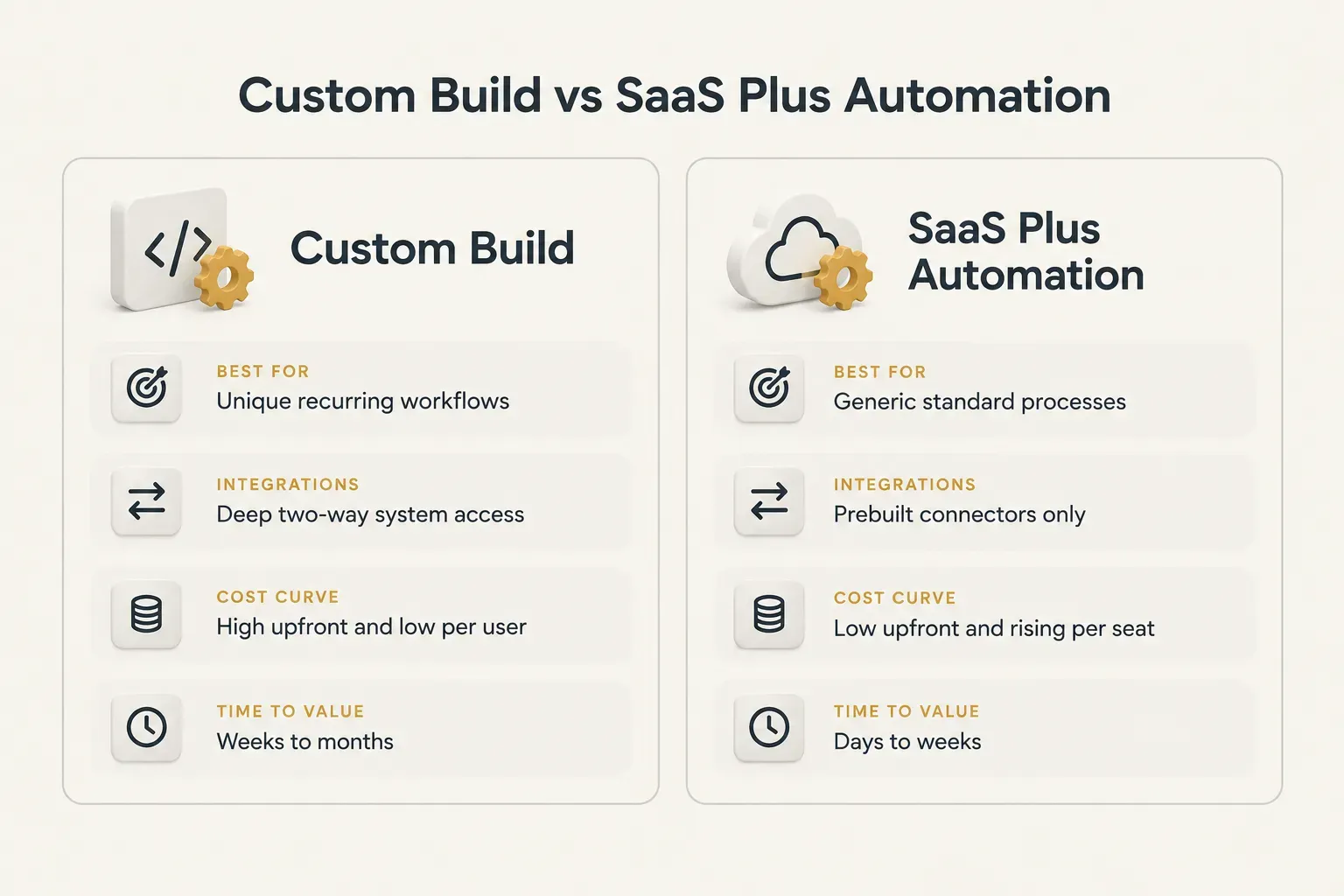
- Workflow uniqueness: If your process gives you a competitive edge or simply doesn’t match any off-the-shelf tool, building makes sense. If it’s a generic process like payroll or ticketing, buy.
- Data sensitivity: Highly regulated data (patient records, financial transactions) may require control over where data is stored and who can access it. That pushes toward custom builds or strictly vetted vendors.
- Required integrations: If the app must read and write to an ERP, a legacy database, and a warehouse system at once, SaaS connectors often fall short. Deep API integration is a strong signal for custom work.
- User count: Per-seat SaaS pricing scales linearly. At 500 or 2,000 users, a custom app’s fixed cost can become cheaper within two to three years.
- Total cost of ownership: Compare license fees over five years against build cost plus maintenance (typically 15 to 20 percent of the initial build per year). Include training and integration costs on both sides.
- Responsive web app as a middle path: If users only need forms and dashboards on any device, a responsive web app costs less than native mobile and avoids app-store distribution entirely.
When does SaaS plus automation win? When the workflow is mostly standard and the gap is just a few handoffs.
Connecting a form tool, a CRM, and Slack through Zapier-style workflow automation can solve 80 percent of the problem in a week.
Start there, measure the pain that remains, and build only for the part that truly doesn’t fit.
How the Development Process Works
Good business process automation starts with a whiteboard, not an IDE.
The teams that ship on time are the ones that spend the first two weeks asking uncomfortable questions.
Discovery Before Code
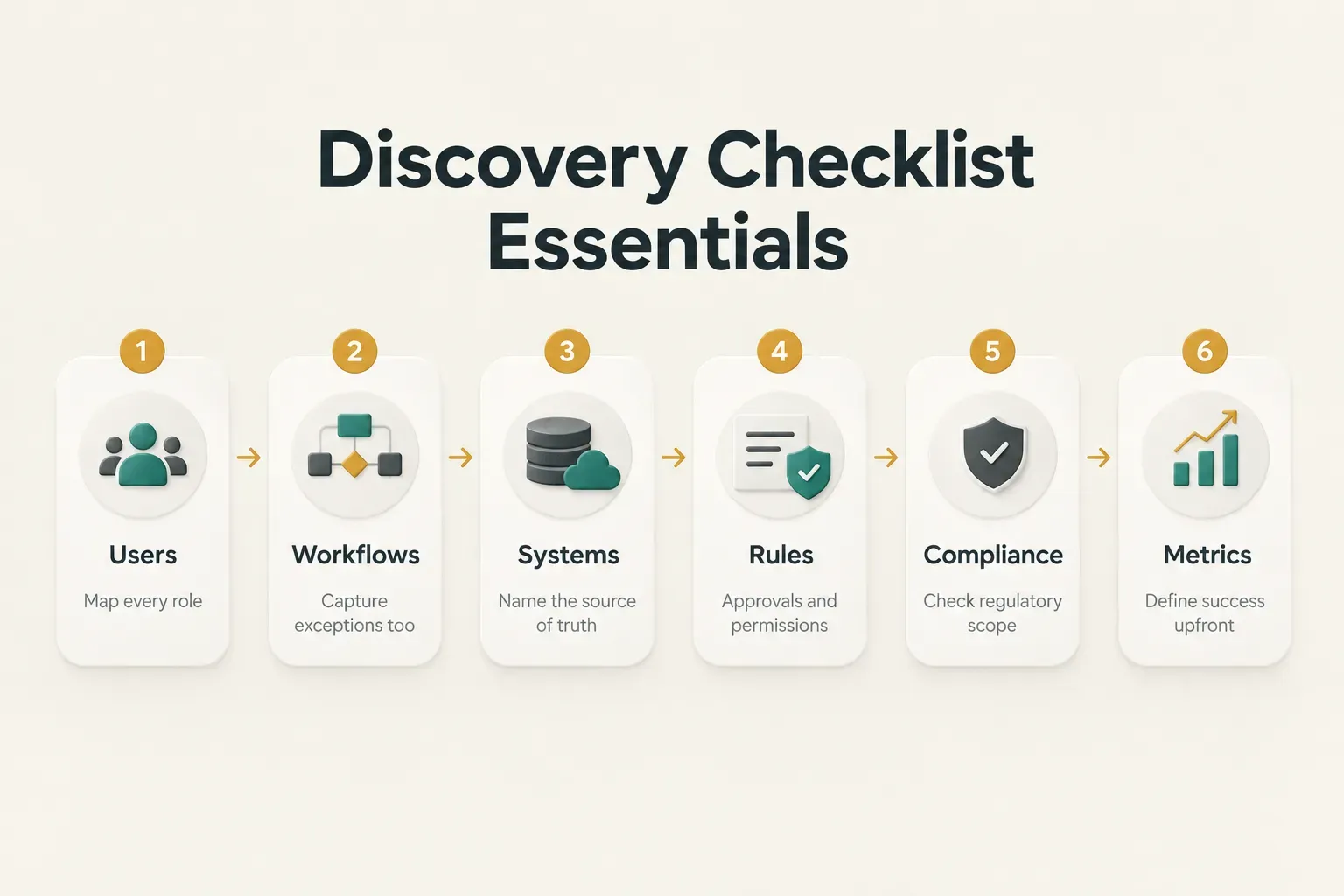
Discovery turns vague requests (“we need an app for the warehouse”) into a buildable scope. Work through this checklist with real users, not just managers.
- Map users and roles. List every person who touches the workflow, from the warehouse picker to the regional director. Note what each role needs to see, do, and approve.
- Document workflows and exceptions. Capture the happy path, then hunt for edge cases like partial deliveries, rejected approvals, or a manager on leave. Exceptions usually account for most of the complexity.
- Identify systems of record. Decide which system owns each piece of data, whether that’s the ERP for inventory or the HRIS for employee records. The app should rarely become a new source of truth by accident.
- Define approval rules. Write down thresholds, escalation paths, and delegation logic. “Purchases over $5,000 need finance sign-off” must become an explicit rule.
- Set permission levels. Specify who can create, view, edit, and delete each record type. This feeds directly into role-based access control later.
- Confirm compliance requirements. Check whether HIPAA, GDPR, PCI DSS, SOC 2, or sector rules apply. These affect hosting, logging, and data retention.
- Assess offline needs. Find out where users work and how often they lose signal. Offline support adds real cost, so confirm it’s needed.
- Agree on success metrics. Pick two to four measurable targets, such as cutting approval time from three days to one. Without them, you can’t prove ROI.
Picking the Right Architecture
There is no universally best stack.
The right choice depends on device coverage, hardware access, performance needs, team skills, and how often you plan to release updates.
- Consider native (Swift, Kotlin) for demanding hardware use. Native offers the best performance and the deepest access to camera, NFC, Bluetooth, and GPS. The trade-off is maintaining two separate codebases and two specialist skill sets.
- Default to cross-platform for most business apps. Cross-platform development with Flutter or React Native ships one codebase to iOS and Android, with near-native performance and solid hardware access. CompletApp, for example, uses a single-codebase Flutter approach so a mid-complexity internal app doesn’t require duplicate iOS and Android builds or two release pipelines.
- Choose a web app for dashboards and desktop-heavy work. Browser apps cover every device and update instantly with no store review. They are weaker on offline use and hardware access.
- Use a progressive web application for light mobile needs. A PWA installs from the browser, works partially offline, and avoids store distribution. iOS support has improved but still lags Android on push notifications and background sync.
- Match release cadence to the platform. If you push weekly updates, web and PWA avoid app-store review delays, while cross-platform apps with over-the-air update tooling come close. Native apps distributed through MDM can also bypass public store review.
- Plan the mobile backend early. Whatever the front end, you need an API layer, authentication, file storage, and push services. Choosing between a managed backend and custom services affects both cost and compliance.
Integrating With Systems You Already Run
Integration is where timelines quietly slip.
An app that looks finished in a demo can stall for weeks because the ERP’s API returns data in a format nobody expected.
- Lock down API contracts first. Agree on endpoints, payloads, error codes, and versioning before front-end work begins. A written contract lets teams build in parallel.
- Settle data ownership. Decide which system wins when two records disagree. Ambiguity here causes the hardest bugs.
- Plan for sync conflicts. When a field tech and an office admin edit the same job, you need rules: last write wins, field-level merging, or manual review.
- Pick webhooks or polling deliberately. Webhooks push changes instantly and reduce load, but require the source system to support them. Polling works with older systems at the cost of delay and extra traffic.
- Add a middleware layer when needed. An integration layer or iPaaS can translate between modern REST APIs and older SOAP or file-based interfaces. It also isolates the app from changes in backend systems.
- Respect legacy limits. Some on-premise systems have rate limits, nightly batch windows, or no API at all. Factor these constraints into scope instead of discovering them in week ten.
- Design fallback behavior. When an external system is down, the app should queue actions, show a clear status, and retry. Users should never lose work because the ERP is under maintenance.
- Set realistic timelines by scope. A focused MVP with one or two integrations typically takes 4 to 8 weeks. A multi-integration enterprise rollout with SSO, MDM, and legacy connections usually runs 4 to 6 months.
Security, Devices, and Offline Access
A login screen is not a security strategy.
Internal apps often hold more sensitive data than public ones (salaries, customer contracts, health records), yet they frequently get less scrutiny because “only employees use it.”
Securing Company and Employee Data
Security in a secure software development lifecycle starts with threat modeling: listing what could go wrong, who might attack, and which data matters most. A field inspection app and a payroll portal face very different threats, so their controls should differ too.
From there, apply least privilege.
Every user and service gets only the access it needs, enforced through role-based access control (RBAC). A warehouse picker shouldn’t see supplier pricing, even if the data lives in the same database.
Identity and access management ties it together.
Single sign-on through Microsoft Entra ID, Okta, or Google Workspace means one corporate identity and instant deprovisioning when someone leaves. Layer multi-factor authentication on top, especially for admin roles and remote access.
On the device, store tokens and cached data in encrypted storage like the iOS Keychain or Android Keystore. Set session timeouts that match risk: 15 minutes for finance, longer for a low-risk scanning app.
Keep API keys and credentials out of the app binary entirely, using a secrets manager on the server side.
Audit logging records who did what and when. It’s essential for investigations and often mandatory for compliance.
Before launch, run static code analysis, dependency scanning, and a penetration test against the OWASP Mobile Application Security Verification Standard (MASVS).
Regulated industries raise the bar further. Healthcare apps under HIPAA, financial tools under PCI DSS or the EU’s DORA rules, and anything touching EU personal data under GDPR need stricter data residency, retention policies, and tamper-evident audit trails.
Yes, even for internal tools.
MDM, MAM, BYOD, and Distribution
How the app reaches devices matters as much as how it’s built. Enterprise mobility comes down to two questions: who owns the device, and how much control does IT need?
Mobile device management (MDM) controls the entire device.
IT can enforce passcodes, push apps, and wipe the phone remotely. It suits corporate-owned devices like rugged scanners or company-issued phones.
Mobile application management (MAM) controls only the corporate app and its data.
It fits bring your own device (BYOD) programs, where employees use personal phones and won’t accept IT reading their photos. MAM can block copy-paste into personal apps and wipe only corporate data.
Distribution follows the same logic.
Private enterprise distribution through Apple Business Manager, Managed Google Play, or an MDM console keeps internal apps out of public stores. Public app-store release makes sense only for customer-facing business apps or when partners outside your organization need access.
Designing for Offline Field Work
A technician in a hospital basement can’t wait for signal to log a repair. Offline-first architecture treats the device as the primary workspace and the server as something to sync with later.
The mechanics are straightforward to describe and tricky to get right.
Data lives in a local database (SQLite, Realm, or Isar). Every change goes into a sync queue, which uploads in order once a connection returns.
Data synchronization needs explicit conflict resolution rules. Common approaches include last-write-wins for low-risk fields, field-level merging for forms, and flagging conflicts for human review on critical records like invoices.
Pick per data type, not one rule for everything.
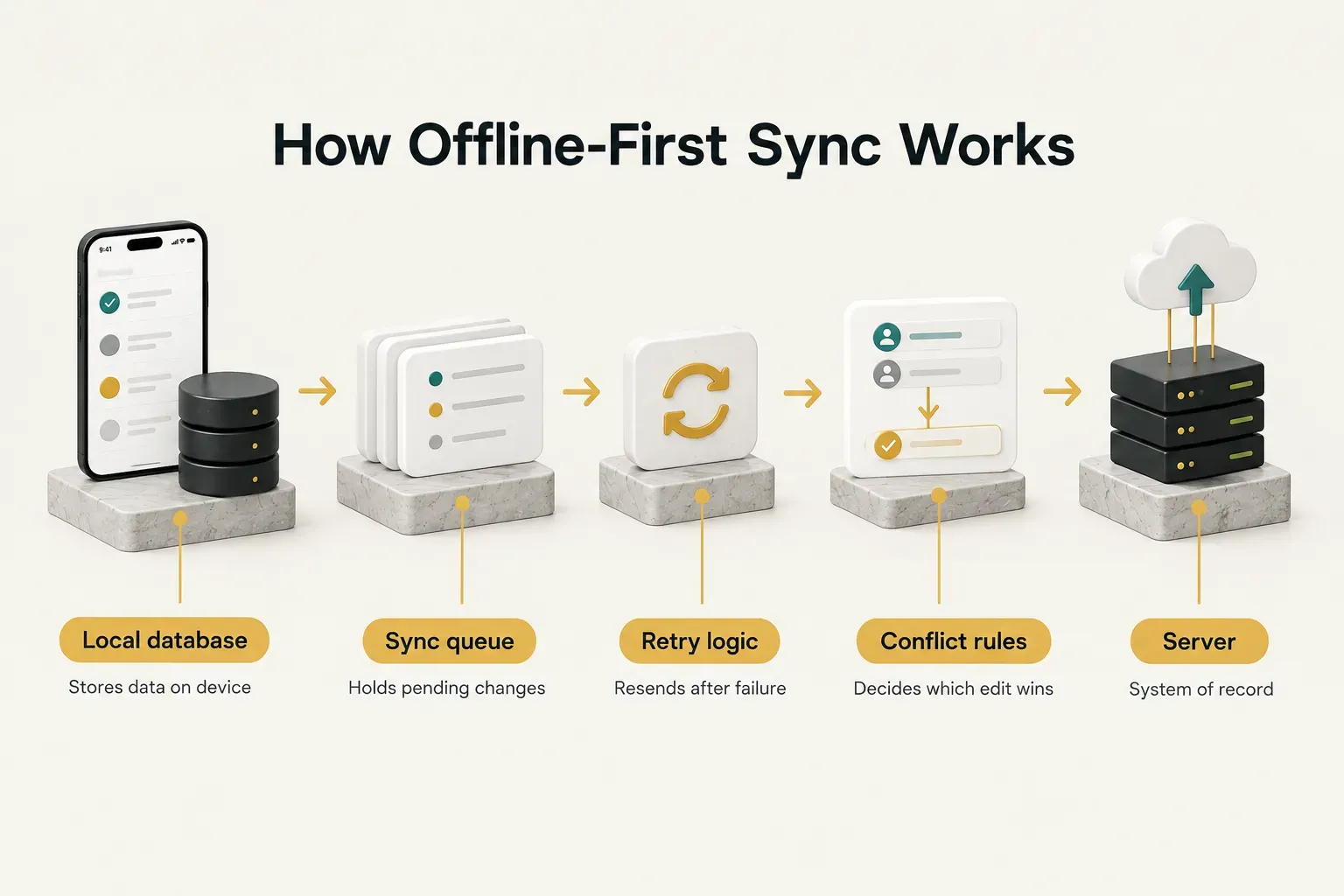
Good offline apps also show stale-data warnings (“Last synced 3 hours ago”) so users don’t act on outdated stock levels. Retry logic should use exponential backoff to avoid hammering the server when signal flickers.
And when a device is lost or retired, a remote wipe must clear the local database and cached files, not just log the user out.
Launch, Adoption, and Long-Term Ownership
Here’s a hard truth: an internal app that employees work around is worse than no app at all.
You’ve paid for it, and the spreadsheet is still running the business.
Getting Employees to Actually Use It
Adoption is a design problem, not a communication problem.
No launch email will save an app that adds steps to someone’s day.
Start with a pilot group of 10 to 30 users who represent different roles and skill levels. Watch them use the app in real conditions, which is what workflow fit testing really means.
You’ll find issues no requirements document caught… like the fact that gloves make small buttons unusable.
Back the pilot with short training materials (two-minute videos beat 40-page PDFs) and a visible feedback loop. When users see their suggestions shipped within weeks, trust builds fast.
Accessibility belongs in the baseline, not a later phase. Support keyboard navigation and screen readers, follow WCAG 2.2 guidance on touch target size (at least 24 by 24 pixels, with 44 by 44 recommended), keep color contrast at 4.5:1 or higher, and write error states that explain how to fix the problem.
“Invalid input” helps no one.
Then set measurable behavior change targets. For example: 80 percent of expense claims submitted through the app within 60 days, or paper inspection forms eliminated by the end of the quarter.
Good UX translates directly into operational savings. Cutting a task from 12 taps to 5, removing duplicate data entry between two systems, and letting managers approve from a push notification all add up.
Save three minutes per task across 200 employees doing it four times a day, and you recover roughly 40 hours of work every single day.
What Happens After Launch
Launch day is the start of ownership, not the end of the project.
Apps without a named owner decay quickly as operating systems update and backend APIs change.
Post-launch ownership covers several ongoing jobs:
- Crash and integration monitoring through application performance monitoring tools like Sentry, Datadog, or Firebase Crashlytics, with alerts when an ERP sync starts failing.
- Analytics tracking user adoption metrics such as daily active users, task completion rates, and drop-off points.
- Support ownership, meaning a clear answer to “who do I call when it breaks?” for every user.
- Release management with a predictable update cadence, staged rollouts, and testing against new iOS and Android versions each year.
- Deprecation planning for old API versions, unsupported devices, and features nobody uses.
- Incident response procedures covering data breaches, outages, and lost devices.
Finally, measure ROI the same way you’d measure any capital investment.
Track time saved per task, error reduction, approval cycle time, and adoption rate. Compare those gains against the one-time build cost plus ongoing maintenance, and review the numbers every quarter.
Deciding Your Next Step
The decision logic is simpler than it looks.
If the workflow is unique and recurring, build. If it’s generic, buy or automate first, then build only for the gap that remains.
Whatever you choose, resist the company-wide launch.
Start with a scoped MVP and a pilot group, prove the time savings, and expand from evidence rather than optimism. Smaller first releases cost less, ship faster, and surface integration problems while they’re still cheap to fix.
The lowest-risk next move as of 2026? A discovery conversation before you commit to a full build.
Map your users, systems, and success metrics first.
The right scope usually becomes obvious within a few sessions.